
Most RTOs moving to Canvas run the same experiment. They take the Word document they have been using for three years, export it as a PDF, and upload it. It works. Sort of. The page loads. The learner can scroll through it.
Then a trainer opens it on a tablet and the text is 8pt. A learner on a phone cannot read the tables. Someone tries to click a heading in the PDF and nothing happens. The document looks exactly like it did in Word, which is the problem.
Canvas is not a file storage system dressed up with a nice interface. It is a page-based learning environment. What works in a Word document does not translate. Understanding why that gap exists is the first step to closing it.
Why Word-to-PDF breaks in Canvas
A Word document was designed to be printed on A4. The layout, margins, table widths and font sizes are all calibrated to a fixed physical page. When you export to PDF, those assumptions travel with the file.
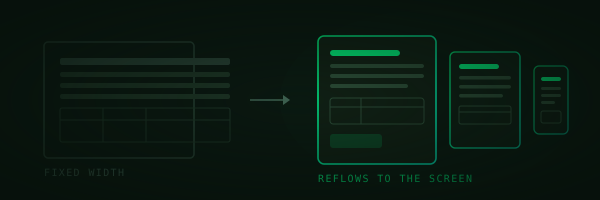
Canvas renders content inside a browser window, which is variable. It changes width depending on the device, the screen size, and how the user has the window open. A PDF dropped into Canvas does not respond to any of that. It sits at a fixed width, usually wider than the usable space on most screens, and either overflows or forces the learner to zoom in and scroll sideways.
There is also no navigation. A 40-page PDF in Canvas is 40 pages of vertical scroll with no section headings you can jump to, no in-built progress tracking, and no way for Canvas to measure whether the learner actually read anything.
What SCORM gets you, and where it stops
SCORM is a better step. A packaged SCORM file gives you tracking, completion data, and content that renders inside Canvas without the PDF problems. If you built the SCORM in a tool like Articulate or iSpring, the layout is controlled by that tool rather than the browser, so it generally looks consistent.
The issue is that SCORM is a sealed package. You cannot edit the content once it is uploaded without going back to the authoring tool, republishing the file, and re-uploading it. If a unit gets updated, a performance requirement changes, or a trainer spots an error, the fix takes longer than it should. You are also dependent on the authoring tool staying licensed and the original file being accessible.
For RTOs with a small number of stable units, that trade-off might be fine. For RTOs managing active training package transitions, or scaling the number of units on Canvas, it becomes a maintenance problem quickly.
What Canvas-native HTML actually is
Canvas has a built-in page editor that produces HTML content displayed directly inside the LMS. No file upload. No fixed-width container. No authoring tool dependency.
A Canvas-native HTML page is written in standard HTML and styled to render inside the Canvas interface. It responds to screen size. Headings, tables, callout boxes and images all scale appropriately whether the learner is on a desktop, laptop or phone. Links are actual links. Tables are real HTML tables, not images of tables. Text is selectable, searchable, and readable at any zoom level.
It also connects to Canvas’s native features in ways that PDFs and SCORM cannot. You can attach quizzes directly after a topic section. You can link to other pages in the module. The learner’s progress through pages is tracked by Canvas without any SCORM workaround.
Here is a direct comparison of what each format gives you:
| Format | Mobile-responsive | Editable after upload | Canvas tracking | No authoring tool needed |
|---|---|---|---|---|
| Word to PDF | No | No, re-upload only | No | Yes |
| SCORM | Partial | No, re-export required | Yes | No |
| Canvas-native HTML | Yes | Yes, edit in Canvas | Yes | Yes |
What “LMS-ready” actually means in practice
The phrase gets used loosely. Most providers mean they will hand you a Word document that you can upload yourself. That is not LMS-ready. That is a document that is adjacent to your LMS.
LMS-ready content, properly defined, is content built for the environment it will live in. For Canvas, that means:
- HTML pages structured around Canvas modules, not Word chapter headings
- Tables coded in HTML, not pasted as images or formatted cells from Word
- Images sized and referenced correctly so they load without breaking layout
- Section breaks that match Canvas’s page and module architecture, not document page breaks
- Links that work inside the Canvas environment, including links between module pages
The reason almost no competitor is producing content to this standard is that it requires knowing the Canvas environment from the inside. It is not a conversion job. You cannot take a document and run it through a tool to get there. The content needs to be built with the LMS in mind from the start.
The practical difference at upload
When an RTO uploads Canvas-native HTML content, the upload is a paste or a module import. The page looks right on the first load, on desktop and on mobile. There is no formatting to fix, no tables to rebuild, and no PDF orientation to correct.
When the same RTO uploads a PDF, they are looking at a document designed for something else. It sits in a place it was not designed for, viewed by learners on devices it was not formatted for.
That gap between the two experiences does not feel large until a learner phones in to say they cannot read the assessment task on their phone. Or a trainer asks why the table in Unit 4 looks different from the table in Unit 6.
Canvas HTML as standard means those calls do not happen.